Wednesday, 27 August 2014

SmartPunctuation

A Free Document Productivity Tool for Word

This tool automatically punctuates bulleted or numbered lists, and reapplies this punctuation when the layout or order of the list changes. 

The methods supported by this tool are given in the following table.

There are several standard ways of punctuating bulleted lists, whether with ‘,’ or ‘;’  or ‘.’ marks. Some methods require an ‘and’ too.

All of the methods are invoked in the same way. Place the cursor in the bulleted list and press the shortcut key. The correct punctuation is applied.

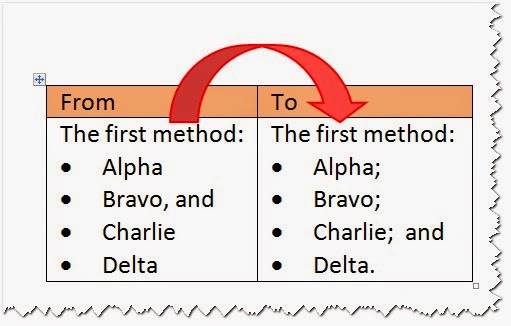

If the rule has a " and", this will be inserted in the second to last line as shown.

The method works in regular text and inside table cells.


The routine also strips out unwanted punctuation and applies the correct one, including ‘and’s .
In this example, the order of the list has been changed and  the ", and" has been removed before the correct punctuation applied.


Methods 1-3 leave the character of the first letter unchanged, so that sentence-like lists are supported.  Switching off “Capitalize the first letter of sentences” in the AutoCorrrect options helps for these methods too.  

Friday, 22 August 2014

Track Changes Handling for Tools

A Free Document Productivity Tool for Word

This release allows the user to switch off track changes for edits made by Document Productivity Tools.

If Track Changes is switched on, the system asks if you wish to record the changes by table renumbering, moving rows and other Document Productivity Tools. You might decide that these sorts of changes are cosmetic, and that the number of changes that would be recorded would be distracting, and therefore decide not track them.

The tracking rule is reset each time you start Word, and the first use of a  Document Productivity rule will bring up the dialogue shown. 


If “N” is selected, the system will temporarily switch off track changes, run the routine and restore the track changes setting.


If “Y” is selected, track changes remains on, and any changes made are tracked as normal.

The track changes decision made remains set for the remainder of the Word

Saturday, 26 July 2014

Typing Productivity - Part 4 - AutoCorrect Import and Export

A Free Document Productivity Tool for Word

This part describes the AutoCorrect import and export tool that allows you to add new Typing Productivity abbreviations to your system.

It is the way you can use the library of nearly 1000 entries already prepared, and it allows you to move your abbreviations from one PC to another.

You can use this tool to move spelling AutoCorrect entries, even if there are no Typing Productivity entries involved.

Preparation

Download a copy of the Typing Productivity Import and Export Tool from here

You may already have some spelling correction entries in AutoCorrect which you want to preserve.   If you do, carry out Part 1 – Preserve Current Spelling Entries before proceeding to Part 2.
If you don’t care about any existing spelling entries go straight to Part 2.


Part 1 - Preserve Spelling Entries

Spelling entries are the AutoCorrect entries used to correct typing errors.  You will want to preserve them, carry out these steps.

Step 1. Take a copy of the Import Export Tool document and delete the entries in Table 1 – Spelling entries, making sure that the header row remains. 

Step 2.  Click the Export Spelling button.  All existing AutoCorrect entries will be loaded into Table 1.  It might take a short while and the update counter in the status bar may get a bit behind, but it will finish eventually.

Table 1 now contains all current spelling corrections.  This table should replace the Table 1 in your downloaded version of the Import and Export Tool.

Part 2 - Import Typing Productivity Entries

To import the Typing Productivity entries, click the Import All AutoCorrect button.  This will import the contents of both Table 1- Spelling Entries and Table 2 - Typing Productivity  Entries.  

Saturday, 7 June 2014

Typing Productivity - Part 3 - Automated Entries

A Free Document Productivity Tool for Word

This tool describes uses an abbreviation system to reduce the typing load for business and technical documents. 

See Part 1 for information on dealing phrases and acronyms. It also contains information abbreviation systems in general and discusses typing expanders.


Part 2 deals with abbreviations for long words and words that are very frequently used.  

This part describes the SmartCorrect tool that automates the job of looking up and adding new abbreviations.

Part 4 allows you to bulk import and export your abbreviations, and includes a dictionary of over 1000 abbreviations.

The B2E System – Part 3 – Automatic Entries


The SmartCorrect tool automates the addition and lookup of Typing Productivity abbreviations. 

When adding, the routine determines the default abbreviation to use for the selected text.

The AutoCorrect dialogue is automatically loaded with the appropriate fields filled in.


  • If the text selected is 6 characters or less, SmartCorrect assumes that the value entered is an abbreviation, finds the associated full text equivalent and loads the Autocorrect screen.  This is a simple and effective lookup of an existing abbreviation.  If there is no corresponding full text, the full text field is blank
  • If the text word (longer than 6 characters) SmartCorrect assumes that the highlighted text is the full text.  If the text already has an abbreviation, both values are presented.  If there is no corresponding abbreviation, the first and last characters of the abbreviation are shown, and the user simply completes abbreviation to add the entry. See Part 1 for rules for determining the abbreviation.
  • If the selected text is a two or more word phrase, SmartCorrect assumes

Monday, 12 May 2014

Typing Productivity - Part 2 - Long Words

A Free Document Productivity Tool for Word

This tool describes uses an abbreviation system to reduce the typing load for business and technical documents. 

See Part 1 for information on dealing phrases and acronyms. It also contains information abbreviation systems in general and discusses typing expanders.   
Part  2 deals with abbreviations for long words and words that are very frequently used.  Part 3 provides a tool that automates the job of looking up and adding new abbreviations. Part 4 allows you to bulk import and export your abbreviations, and includes a dictionary of over 1000 abbreviations.

The B2E System – Part 2 - Long Words

Rule 4 - Long words

For long words use the beginning letter, three characters from the second syllable and the last letter.  For example:

clabe = collaborate (colaborate)

epert = experiment (experiment)

acren = accreditation (accreditation)

acumd = accumulated (accumulated)

ctifg = certifying (certifying)

The name of the B2E system is derived from this rule, the characters in the abbreviation are b222e, where b = the beginning of the word, 222=start of the 2nd syllable, and e=end.

The rule works because all you need to do is sound the word out in your head as you type. The abbreviation naturally falls out of this process without intruding on the flow of content.

It produces remarkably few collisions, and focuses on long words (3+ syllables) where the accuracy and speed payback is greatest.


Rule 5 – Compound Words

For hyphenated words, treat them like two work phrases For example:

self-service (self-service)


Wednesday, 23 April 2014

Typing Productivity - Part 1 - Phrases

A Free Document Productivity Tool for Word

This tool describes an abbreviation system to reduce the typing load for business and technical documents.  

Part 1 deals quickly entering multi-word phrases that are often repeated in such documents.    Part  2 deals with abbreviations for long words and words that are very frequently used.  Part 3 provides a tool that automates the job of looking up and adding new abbreviations. Part 4 allows you to bulk import and export your abbreviations, and includes a dictionary of over 1000 abbreviations.

An abbreviation system has two important benefits:
  • Using abbreviations increases your typing throughput, regularly used phrases and long words can be typed with just a few characters.
  • Abbreviations makes typing more accurate because shorter words are easier type and the chances of needing to edit the word later are reduced.


AutoCorrect

AutoCorrect provides a general purpose tool for expanding an abbreviation to full text. For example the abbreviation "typpro" is expanded by AutoCorrect to be "typing productivity". 

I had used AutoCorrect concept in the past, but found the experience frustrating because I could only remember a handful of abbreviations.

I propose the B2E system – a set of simple rules that allow you to generate the abbreviation in your mind as you generate content.  They need to be simple so you can use them without being distracted as you type.

The B2E system – Part 1 - Phrases

The B2E system is intended for general purpose rather than specialist or high volume.  It focuses on the big ticket items – speeding up the entry of regularly used phrases and long words.

To use B2E, the abbreviation and its corresponding full text need to be loaded into the Word dictionary. This can be done manually or imported via a spreadsheet (see part 3).  Once this is done, the abbreviations will be available in all Office apps (e.g. Excel, Visio ) provided you keep using the same dictionary.


Rule 1 – Three or more word phrases 

Use the beginning  letter of each of the words in the phrases.  For example:
  • rar  = roles and responsibilities
  • isra = Information Security Risk Assessment

You can capitalise the full text if that is the way it is normally expressed
See also Rule 3 – Acronyms


Rule 2 – Two word Phrases


AutoCorrect - How to Access and Record Entries

A Free Document Productivity Tip for Word

This post shows how to load the AutoCorrect maintenance tool onto the Quick Access Toolbar so that it is available for use with a single click.  It then describes how to enter an abbreviation and its corresponding full text.

These tasks lay the foundation for the following posts that use the abbreviation concept to reduce the typing load of repetitive text.


Adding AutoCorrect to the Quick Access Toolbar

Step 1 - Open Quick Access Toolbar maintenance tool.