Showing posts with label Free Document Editing Tools for Word. Show all posts

Tuesday, 8 November 2016

SmartReview - Enhanced Review Tools for Word

A Free Document Productivity Tool For Word


SmartReview provides a range of tools to make document review fast and efficient. You can quickly switch the browsing methods, and apply filters to only view comments or revisions made by certain reviewers.


Using SmartReview 

This the menu you see when you hit the SmartReview key (Ctl+Shift+m).

It shows that the current browse method is by Revisions and Comments. You can also browse through Comments Only, through tables or through each highlighted text.

If you use the Browse Next (Ctl+>) key or the Browse Previous key (Ctl+<) step you through each entry.

Items always centered in the screen for rapid navigation

SmartBrowse always presents each comment or revision halfway down the page. This means you can lock your eye into a specific region of the screen for rapid browsing, rather than scanning each page for the results when using the a standard Word. It is surprising how much quicker you can move through a document.

Show authors

Show Authors gives a quick overview of the activity of the reviewers. It lists the number of comments and revisions each has made and shows the number of highlighted entries that exist.

I use this to get a quick overview of the document.


Browse entries for a specific author

 The filter function allows you enter the number of the author to browse by. Only the entries for that author will be presented.

You can browse by mulitple authors, just enter the number of each separated by a comma.

Use the clear filter function to return to browsing for all authors. 

Inspiration

I often issue documents for feedback. I use this tool to quickly navigate through changes. I use the filter function so that I can skip my own comments and focus on those made by others.

The placing of each item found in the middle of the page is a big improvement over the standard browse. It really speeds up browsing

The Downloads tab contains a copy of SmartReview. There is more information on how it works in the release notes.


Saturday, 15 October 2016

SmartComment - Efficient Comment Entry

A Free Document Productivity Tool For Word


SmartComment allows you to quickly enter comments and to reuse those you have already entered

I use SmartComment when giving feedback to others, often I want to refer to the text in the comment, and frequently reuse comments I have already given in other places in the document

Using SmartComment

You select the text that the comment  and then press the SmartComment shortcut key. I use "Control+]" as the shortcut. 

 So far this is fairly standard functionality. 


You can also place the cursor on a given word, the SmartComment will select the entire word for the comment.

When you press the shortcut key again, SmartComment inserts the page number and text you highlighted. 
This forms the basis of your comment.


The cursor is positioned to add more text.


Reusing Earlier Comments


If you press the shortcut key again, 
you get a list of the previous comments you have entered.  

The selected comment will be entered, and the cursor positioned for minor corrections or additional text.

Only your own comments are used, those entered by others are ignored.

Th allows you to reuse comments.


 The dashed line shows the position of the cursor in the document and the comments are presented in the order they appear in the document.

If the comment is long, only the first part of the comment is shown and the remainder of the text indicated by the "...." characters
If there are lots of comments, the amount of text is reduced even further.


Using the filter

SmartComment has a filter function that lets you narrow quickly locate a prior comment by entering a key word or phrase. The list of comments to select from is reduced, and if there is only one comment with the filter value, it will be inserted automatically.

When you have a blank comment, you can type in a filter value. Only those comments you entered with that value in it are presented.


 If only one comment has "editor" then

Then it is inserted for you automatically.


SmartComment Delete

SmartComment Delete quickly removes comments. Just place the cursor in the l

Monday, 1 August 2016

SmartNote - Fast Document Annotation

A Free Document Productivity Tool For Word


SmartNote lets you enter annotations and placeholder text into documents. You can control the layout and highlighting with simple keystrokes. 

Later, you can browse for notes, and then convert them into standard text or remove them with a simple keystroke. 

The value of SmartNote is in the speed and simplicity of entry.

I use SmartNote to mark placeholder text that needs to be expanded later, or to record things that need to be filled in later, such dates or other information that is not currently clear.

I also use this tool when giving feedback to propose new alternate or additional text directly into the document.

The SmartReview tool (see later post) function allows me to check for these gaps before a document is released. Alternatively, you can use the find function to check for the layout character or for highlighted text.

Using SmartNote


When you press then SmartNote shortcut key, a new annotation is started. The "[" and "]" delimiters are inserted and the cursor is ready for typing.


You now type the note.  


You can also start a note by selecting a range of text and pressing the shortcut key.  The shortcut key puts the SmartNote delimiter around the text.


Pressing the shortcut key anywhere in a SmartNote toggles the colour from grey to yellow to Green.

SmartNote remembers the current colour and applies it to the next note.


SmartNote Delimiters


SmartNote uses two different delimiters.

Double tap the shortcut key and the delimiters toggle between [Text] and <<Text>>

SmartNote remembers the current delimiter and applies it to the next note.


Deleting SmartNotes


To delete a SmartNote, place the cursor anywhere in it and press the Delete SmartNote shortcut key.

The delimiter and highlight are removed converting the placeholder in to standard text.


Press the Delete SmartNote key and the text is deleted completely.


Update

I have imporved SmartNote but including a third highlight with no delimiter. This allows you to highlight selected text and toggle the colour as normal, but without the "[" or "<" delimiters. To get into this mode, use the double tap feature until it is selected/

Learning about VBA

This tool is the first one to make use of the Double Tap concept, which allows me to add extra features to a basic tool without expanding the number of keys needed and without introducing additional user.

I have not seen anyone else using this concept.

It uses the VBA Timer functions to detect the time between two calls to the same procedure. If the difference is quick enough (a double tap), alternate code can be called.

Inspiration

I SmartNote because I can enter one with a single key. By pressing the same key I can toggle colours and delimiters and use the latest values for the next one.

I also like the ability to convert the placeholder text to standard text or delete the SmartNote with the same simple keystrokes.

This was one of the first macros I wrote, based on an idea from Ben Read - thanks Ben.


The Downloads tab contains a copy of SmartNote. There is more information on how it works in the release notes.

Saturday, 28 May 2016

Upcoming Posts

Free productivity tools for Word

Here is an update on the tools that are currently being worked on for publication.

Please let me know if you have any suggestions for new tools or forums where the tools can be publicised.


Giving Feedback

The next few posts will be focused on the tools I use for giving feedback on documents I have to review


SmartNote

This tool allows you to quickly enter highlighted [placeholder text] or suggested wording changes. I use this to mark up gaps I need fill or draft changes to contract documentation. SmartNote can also be used to record instructions or <<actions that need to be do to be done>>. The tool has toggles to change the display format and to convert the highlighted text to normal.

SmartComment
This tool allows you to select from a range of standard text to use as the basis for comments. With an extra keystroke you can load consistent comment text without lengthy typing  You can add to the text entered by default and add your own default values. 

SmartReview
This tool is a series of shortcuts that allow you to review, browse and manage comments, revisions and highlighted text.  Collectively they are a real time saver.

SmartExtract
This tool allows you to extract comments, revisions and highlighted text into a summary document that shows them in the context of the text where it occurs. This allows you to quickly assess the impact of feedback and respond to to it in a consistent and efficient way. This tool has already been published, but I have recently updated it to allow selective extracts, for example for a subset of the reviewers or just some of the feedback types.

Other Features
I have been enhancing several tools published earlier.  New features sets include:

  • A tool that intuitively  selects of a word, paragraph or table
  • Tools to define a master table in the document and have other tables confirm to column sizing and headings, row format and may others
  • Tools to tidy a document, removing unwanted typing and formatting problems.
  • Tools to clean up text copied to and from Excel
  • Simplifying the rules for the B2E typing productivity tool

Many of these enhancements make use of a double-tap feature whereby shortcut keys behave differently if you double-tap rather than single tap them.

I am keen to get feedback and always welcome ideas for new tools.  Leave a comment or checkout my LinkedIn profile.


Wednesday, 18 May 2016

SmartSpell - Fast Spelling Correction for Word


A Free Document Productivity Tool For Word

SmartSpell provides fast spelling correction with a single keypress, without interrupting your typing flow. 

It corrects a recent spelling error without leaving your current cursor location. You don't need to backspace or use the mouse, and you can keep typing at speed.

Using the Tool


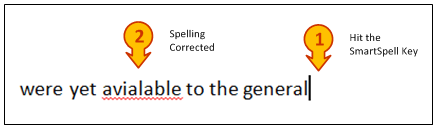
When you notice a spelling error, press the SmartSpell shortcut key (Ctl+\). 

The error could be up to twenty words earlier.


The tool will work is way back through your recent typing to find the error.

It will correct the error using the most likely suggestion. This is almost always correct.

The cursor is returned to the start location, allowing you to keep typing from where you left off.


The status bar tool shows what the error was, what it was corrected to.


 It will also show any alternative spelling correction choices


If the first choice was wrong, hitting the shortcut key again and again cycles through the available choices.


If none of the choices are suitable, hit the SmartSpellCheck shortcut key (Ctl+Shift+\) and the original word is reinstated and the spelling dialog is opened.

You can use the SmartSpellCheck key any time too, especially if you want to add the word to the spelling dictionary.


Inspiration

I found that I was interrupting my thoughts to correct typing errors, and I wanted a quicker way to correcting them. Word allows you to backspace and make corrections, but it takes time. It also interrupts the my typing flow an breaks my chain of thought. 

I could also use the mouse or several standard shortcut keys to highlight the error, navigate through the choices then navigate back to the start location. However, that means moving from the keyboard to the mouse, breaking the flow once again.

This tool uses a quick keypress to fix a very high percentage of the errors I make without breaking the flow. I like the way it can correct errors quite a way back. This is important because sometimes I don't notice errors as quickly as I should. 

It took me a few days to get used to SmartSpell, the reflect to backspace and fix took a while to break, but now I use the tool without thinking about. The choice of a really accessible shortcut key in a button that is usually larger than most keys also helps. 

Learning About Word Programming

SmartSpell uses relatively simple Word programming techniques. A bookmark is used to record the current location. the tool then works back through the prior text word by word, testing each with the spelling error function until an error is found. 

The location of the error is recorded and the first spelling correction choice is substituted. At the same time, up to 10 other spelling suggestions are stored so that the tool can cycle through them later if necessary. 

The status line is updated and the cursor returned to the start point so that typing can resume. SmartSpell uses two global arrays to store the suggestions and the suggestion pointers.


Summary

SmartSpell allows me to smoothly deal with typing errors, and lets me concentrate on capturing my thoughts as efficiently as possible. I use every day.


The Downloads tab contains a copy of SmartSpell. There is more information on how it works in the release notes.

Sunday, 10 April 2016

SmartGoto

A Free Document Productivity Tool For Word

This tool marks the current location and returns to it after you have gathered or checked text from another location. When used with SmartExtact, the tool takes you directly to the source location of changes recorded in the extract summary document.


Using the Tool - Normal typing


To use the tool, hit the shortcut key (Ctrl+`).  This places a bookmark at the current location. If you hit the shortcut key again you go directly back to that location.  

This allows you to stop typing, get some text you want to reuse or check something, and then quickly return to where you started.


If you don't return after 5 minutes, the tool abandons the first bookmark and records a new start location.

If you double tap the shortcut key, the tool takes you to the table of contents.

Using the Tool with Smart Extract


Place the cursor in the heading line for an extracted comment or change

Then press the shortcut key. The tool will take you to the relevant page in the source document.

The source document has to be open for this to work.


Inspiration


I use this tool quite regularly because it can be quicker that opening a split screen or manually adding a bookmark. In many cases it also means that I dont have to take my hands off the keyboard. 

I the SmartExtract logic to this tool so that I could quickly go to the source of an edit or comment to check further detail. This really improves the usefulness of SmartExtract.

The basis of this tool was the first one that I build.  It is a good introduction to VBA coding.

 Summary

SmartGoto is a simple tool that I use every day.

The Downloads tab contains a copy of SmartGoto. There is more information on how it works in the release notes.

Sunday, 29 November 2015

SmartExtract

A Free Document Productivity Tool For Word

This tool extracts revisions and comments made by a reviewer and formats them into a table for further management and response.

SmartExtract is used to receive feedback on a document. The comments and tracked changes suggested by the reviewer are collated into a table which shows comment or revision and its context. Tools allow you to go to the page of each entry, and your response to the comment or change can be recorded in the table.

Creating this table allows quick and efficient responses to be prepared for each reviewer. The point-by-point response to their feedback looks very professional and acknowledges the effort they have put in.


Consolidating all feedback from multiple reviewers into a single table creates a great tool to use during review meetings. In addition, if you use placeholders for gaps and highlight areas of rework in your own documents,  this tool can also produce a great summary of the outstanding work needed to complete a working draft.


Here is a sample of a typical report from SmartExtract that includes the author's response to to the feedback.


The key points from the sample are:


Numbering
Each entry is numbered so it can be tracked. This is especially useful if the report is being used at review meeting.

Context


The context of the change or comment is given, without this, the change or comment is of little use and would require constant access to the source document. In most cases, the context is sufficient to make decisions about the feedback.

If the comment or change is made in the body of a document, the context is the 20-30 words from the proceeding paragraphs. If it is made in a table, the entire contents of the table cell are given.

The page and line number of the change or comment is shown, and a reference to the row in any table is given. Using SmartBookmark (next post) when on the page number will take you directly to that location in the source document for further review.


Insertion and deletion changes are shown as they are normally seen in track changes, in a different colour and with deletions in strikethrough font. The location for comments is shown in grey highlight.

Sunday, 23 November 2014

SmartTable Insert Update

A Free Document Productivity Tool for Word

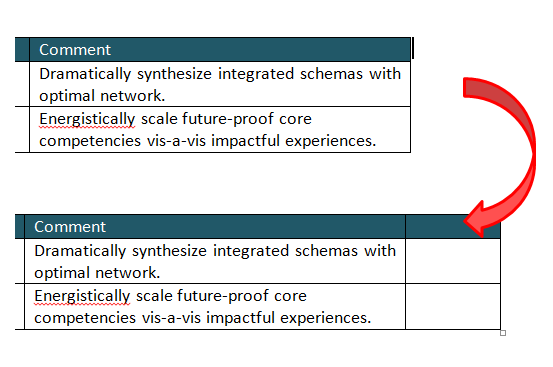
I have added logic to the SmartTable Insert tool to improve the way Word inserts columns

When Word adds columns, it adds them with the same size as the column at the start point.  

I find that inconvenient, especially if auto resize is switched off, the new column can be created off the width of the page.


The SmartTable Insert routine has been altered to add a modest sized new column to the right if the cursor is just outside the first row. 


To insert a column, make sure the cursor is just outside the table at the first header row.


The new table is of modest size, not the monster sized column that I usually get.


Summary

This is an update to SmartTable Insert.  The latest copy of all Tool code can be found in the Downloads tab.

SmartTable Number Update

A Free Document Productivity Tool for Word

There have been a number of improvements to SmartTable Number, the tool that renumbers and tidies tables in Word.

The highlights are:
  • Ability to handle multi-row headers.
  • Suffix codes e.g “7a, 7b, 7c..” added for rows that follow from the one above.
  • Continue numbering from a previous table.

Handle Multi-row headers

SmartTable Renumber is designed to start numbering from the first row after the header. Previously, only single row headers were supported. Having worked on some complex tables lately, I added logic to handler multi-row headers.

You can now use the “Repeat Header Rows” option in the Table Layout tab to define multi-row headers. Numbering will start from the first regular row after the header.

Using the "Repeat Header Rows" sets a flag on each header that ensures the header gets repeated on each page.  The numbering routine tests for this flag and skips header before starting to assign numbers.

Suffix Codes

The routine now numbers rows that have a blank cell in column 2.  It does this by appending “a, b, c…” to the previous row number.  


In this example, since there is no text in column two, the routine has added the suffix a, b, c... to the previous row. 


To switch this on, a new entry in the table control list has been added.  A value of S adds this suffix.  If a value of “N” is entered, rows with a blank column 2 are not numbered.


I needed this logic to handle some complicated tables where the second cell was sometimes a header for several rows that follow.

Continue numbering from a previous table

To continue numbering from the previous table type ”-1” in the first number cell and then select SmartTable Number.

The routine will go to the previous table and get the last number (and prefix, if any) from the previous table and continue numbering.

The “-1”refers to the number of tables to go back, If you type “-2”, the routine will get the number and any prefix from the table before the previous one.  This allows me to insert small tables between the main numbering sequence


In this example -1 has been added to the first row of the second table.  


After selecting SmartTable Number, the numbering from the previous table has been copied down.


I needed this logic to handle several tables that needed to have a common numbering. 

The routine is not smart enough to automatically renumber a series of tables, you have to do them one at a time. This isn't a limitation of coding, its more of a limitation in the way Word works. There are no spare fields in the table properties to permanently store the relationship between tables, this makes building repeatable process tricky.

Summary

This is an update to SmartTable Number.  The latest copy of all Tool code can be found in the Downloads tab.

Friday, 22 August 2014

Track Changes Handling for Tools

A Free Document Productivity Tool for Word

This release allows the user to switch off track changes for edits made by Document Productivity Tools.

If Track Changes is switched on, the system asks if you wish to record the changes by table renumbering, moving rows and other Document Productivity Tools. You might decide that these sorts of changes are cosmetic, and that the number of changes that would be recorded would be distracting, and therefore decide not track them.

The tracking rule is reset each time you start Word, and the first use of a  Document Productivity rule will bring up the dialogue shown. 


If “N” is selected, the system will temporarily switch off track changes, run the routine and restore the track changes setting.


If “Y” is selected, track changes remains on, and any changes made are tracked as normal.

The track changes decision made remains set for the remainder of the Word

Friday, 4 April 2014

SmartMove Up/Down

A Free Document Productivity Tool for Word

This tool moves a single paragraph up/down inside a table cell, and is useful for changing the order of bulleted items in a list.

It also supports the standard reordering tools that move paragraphs up/down in regular text or rows up/down in tables.  Details of this standard functionality can be found in the Moving Table Rows post.

The tool uses the context of the selected text to determine what to move. 

If the cursor is in a table cell and there is no range selected (i.e. just an insertion point) then the function will move the paragraph up/down.  
 
If the cursor is in a table cell and a range is selected, or a whole row (or rows) is selected, the standard OutlineMoveUp/Down  will be used to move the rows up/down.

If the cursor is in standard text as an insertion point or a range is selected, the standard function moves range up/down.

Sunday, 23 March 2014

SmartTable Cell Format

A Free Document Productivity Tool for Word

This tool formats a table cell by adding punctuation and removing empty paragraphs at the end of the cell.  It operates on selected cells or the current cell if no range is selected.

It adds a "." character to paragraphs that do not already end in a punctuation mark. 


It does not add the "." character in the following situations:

Friday, 7 March 2014

SmartTable Insert

A Free Document Productivity Tool for Word

This tool is one of a set that provides advanced features for adding, deleting and moving rows in Word tables. When used with SmartTable Number, they allow rapid entry of information into a table without the distraction of inefficient standard editing functions.
A full list of all the SmartTable tools can be found here.   See also SmartTable Delete


SmartTable Insert

SmartTable Insert places five empty rows below the current and positions the cursor in the first of the new rows ready for data entry.  


It handles special insert situations when inserting rows below the header and section headers, and ensures that the formats in these special rows are not copied down.


SmartTable Insert makes quick entry of content into tables a breeze.  Adding five lines at a time means that you can enter a good deal of information without having to concern yourself with  creating more space.

SmartTable Number simply removes any unused lines with a single shortcut key.