Sunday, 23 November 2014

Taking Stock

A Free Document Productivity Tool for Word

I have been working on some process documentation in the past few weeks, so I'll give the Word macros a break and post some of the Visio tools that I have developed over the last couple of years.


Hand-drawn Process Flow Shapes

My first Visio post will be a set of process flow shapes with a funky hand-drawn look. This signals informality, and promotes discussion. I think they are fun to use too.

The shapes can be used for flowcharts, but there are extensions so you get a decent subset of the BPNM shape palette with shape variants you can switch on and off.

Other Upcoming Visio Posts

My Visio tools provide efficiency improvement features that you can use everyday.  They are especially useful for people laying out process flows, context diagrams and preparing simple graphic designs for summarising business issues and solutions.

The Visio posts coming soon are:
  • Hand-drawn process flow shapes - stencil and template
  • SmartAlign - Enhanced Horizontal and Vertical alignment tools
  • SmartSize - An smart tool for consistently sizing shapes
  • SmartLink - Connector link tools used when adjusting process flows

I'll also be adding a range of smart shapes for reducing the effort when BPMN diagrams - I'll publish a stencil and template for these too.

I also regularly use a set of page re-size and layout tools which I'll also publish.

Word Tools

I have not finished with Word, I have the following tools yet to publish.  Let me know if you want any expedited.  The upcoming tools are:
  • SmartAnnotation - Enhanced annotation
  • SmartBrowse - Extensions to the standard browse tools for managing reviews.
  • Advanced document review tools for managing editing tasks
  • Advanced Table formatting - quickly inserting tables, formatting subsections and making tables consistent across the document.
There are one or two other small items which I use a lot - things like cleaning up double spaces, dropping bookmarks, 

SmartTable Insert Update

A Free Document Productivity Tool for Word

I have added logic to the SmartTable Insert tool to improve the way Word inserts columns

When Word adds columns, it adds them with the same size as the column at the start point.  

I find that inconvenient, especially if auto resize is switched off, the new column can be created off the width of the page.


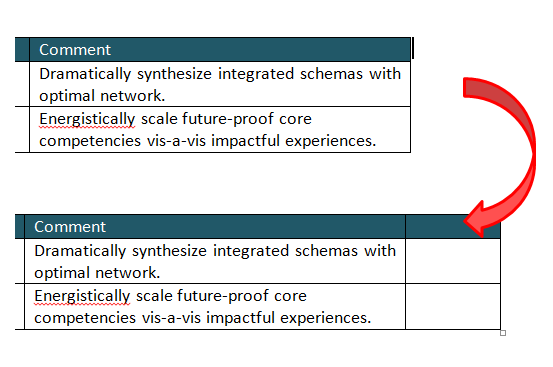
The SmartTable Insert routine has been altered to add a modest sized new column to the right if the cursor is just outside the first row. 


To insert a column, make sure the cursor is just outside the table at the first header row.


The new table is of modest size, not the monster sized column that I usually get.


Summary

This is an update to SmartTable Insert.  The latest copy of all Tool code can be found in the Downloads tab.

SmartTable Number Update

A Free Document Productivity Tool for Word

There have been a number of improvements to SmartTable Number, the tool that renumbers and tidies tables in Word.

The highlights are:
  • Ability to handle multi-row headers.
  • Suffix codes e.g “7a, 7b, 7c..” added for rows that follow from the one above.
  • Continue numbering from a previous table.

Handle Multi-row headers

SmartTable Renumber is designed to start numbering from the first row after the header. Previously, only single row headers were supported. Having worked on some complex tables lately, I added logic to handler multi-row headers.

You can now use the “Repeat Header Rows” option in the Table Layout tab to define multi-row headers. Numbering will start from the first regular row after the header.

Using the "Repeat Header Rows" sets a flag on each header that ensures the header gets repeated on each page.  The numbering routine tests for this flag and skips header before starting to assign numbers.

Suffix Codes

The routine now numbers rows that have a blank cell in column 2.  It does this by appending “a, b, c…” to the previous row number.  


In this example, since there is no text in column two, the routine has added the suffix a, b, c... to the previous row. 


To switch this on, a new entry in the table control list has been added.  A value of S adds this suffix.  If a value of “N” is entered, rows with a blank column 2 are not numbered.


I needed this logic to handle some complicated tables where the second cell was sometimes a header for several rows that follow.

Continue numbering from a previous table

To continue numbering from the previous table type ”-1” in the first number cell and then select SmartTable Number.

The routine will go to the previous table and get the last number (and prefix, if any) from the previous table and continue numbering.

The “-1”refers to the number of tables to go back, If you type “-2”, the routine will get the number and any prefix from the table before the previous one.  This allows me to insert small tables between the main numbering sequence


In this example -1 has been added to the first row of the second table.  


After selecting SmartTable Number, the numbering from the previous table has been copied down.


I needed this logic to handle several tables that needed to have a common numbering. 

The routine is not smart enough to automatically renumber a series of tables, you have to do them one at a time. This isn't a limitation of coding, its more of a limitation in the way Word works. There are no spare fields in the table properties to permanently store the relationship between tables, this makes building repeatable process tricky.

Summary

This is an update to SmartTable Number.  The latest copy of all Tool code can be found in the Downloads tab.

Sunday, 28 September 2014

Select List

A Free Document Productivity Tool for Word


This tool selects an entire bulleted or numbered list ready for further editing or formatting.

It is based on code used by SmartPunctuation, a tool that automatically punctuates a bulleted or numbered list.


The instructions are relatively simple, place the cursor anywhere in the list and select the shortcut key.  The list will then be selected.


The key selection routine used for Select List is also used for by SmartPunctuation. The routine has a number of special features

Handle bulleted lists inside tables. 

Wednesday, 27 August 2014

SmartPunctuation

A Free Document Productivity Tool for Word

This tool automatically punctuates bulleted or numbered lists, and reapplies this punctuation when the layout or order of the list changes. 

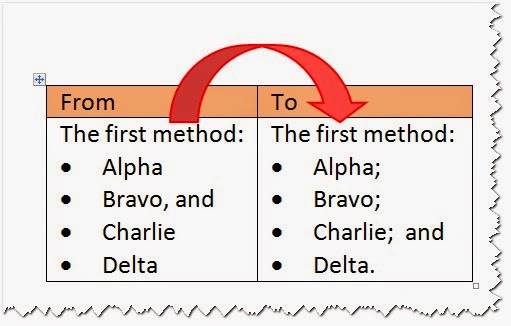
The methods supported by this tool are given in the following table.

There are several standard ways of punctuating bulleted lists, whether with ‘,’ or ‘;’  or ‘.’ marks. Some methods require an ‘and’ too.

All of the methods are invoked in the same way. Place the cursor in the bulleted list and press the shortcut key. The correct punctuation is applied.


If the rule has a " and", this will be inserted in the second to last line as shown.

The method works in regular text and inside table cells.


The routine also strips out unwanted punctuation and applies the correct one, including ‘and’s .
In this example, the order of the list has been changed and  the ", and" has been removed before the correct punctuation applied.


Methods 1-3 leave the character of the first letter unchanged, so that sentence-like lists are supported.  Switching off “Capitalize the first letter of sentences” in the AutoCorrrect options helps for these methods too.  

Friday, 22 August 2014

Track Changes Handling for Tools

A Free Document Productivity Tool for Word

This release allows the user to switch off track changes for edits made by Document Productivity Tools.

If Track Changes is switched on, the system asks if you wish to record the changes by table renumbering, moving rows and other Document Productivity Tools. You might decide that these sorts of changes are cosmetic, and that the number of changes that would be recorded would be distracting, and therefore decide not track them.

The tracking rule is reset each time you start Word, and the first use of a  Document Productivity rule will bring up the dialogue shown. 


If “N” is selected, the system will temporarily switch off track changes, run the routine and restore the track changes setting.


If “Y” is selected, track changes remains on, and any changes made are tracked as normal.

The track changes decision made remains set for the remainder of the Word

Saturday, 26 July 2014

Typing Productivity - Part 4 - AutoCorrect Import and Export

A Free Document Productivity Tool for Word

This part describes the AutoCorrect import and export tool that allows you to add new Typing Productivity abbreviations to your system.

It is the way you can use the library of nearly 1000 entries already prepared, and it allows you to move your abbreviations from one PC to another.

You can use this tool to move spelling AutoCorrect entries, even if there are no Typing Productivity entries involved.

Preparation

Download a copy of the Typing Productivity Import and Export Tool from here. 

You may already have some spelling correction entries in AutoCorrect which you want to preserve.   If you do, carry out Part 1 – Preserve Current Spelling Entries before proceeding to Part 2.
If you don’t care about any existing spelling entries go straight to Part 2.


Part 1 - Preserve Spelling Entries

Spelling entries are the AutoCorrect entries used to correct typing errors.  You will want to preserve them, carry out these steps.

Step 1. Take a copy of the Import Export Tool document and delete the entries in Table 1 – Spelling entries, making sure that the header row remains. 

Step 2.  Click the Export Spelling button.  All existing AutoCorrect entries will be loaded into Table 1.  It might take a short while and the update counter in the status bar may get a bit behind, but it will finish eventually.

Table 1 now contains all current spelling corrections.  This table should replace the Table 1 in your downloaded version of the Import and Export Tool.

Part 2 - Import Typing Productivity Entries

To import the Typing Productivity entries, click the Import All AutoCorrect button.  This will import the contents of both Table 1- Spelling Entries and Table 2 - Typing Productivity  Entries.